> ## Documentation Index
> Fetch the complete documentation index at: https://docs.researchanddesire.com/llms.txt
> Use this file to discover all available pages before exploring further.
# Reset your password
> Learn how to log in using a magic link or reset your dashboard password
# Reset your password
If you've forgotten your dashboard password, you have two options: log in with a magic link or reset your password entirely.
## Log in with a magic link
You can bypass password entry by using the email link option on the login screen.
On the login page, click **Email link** instead of entering your password.
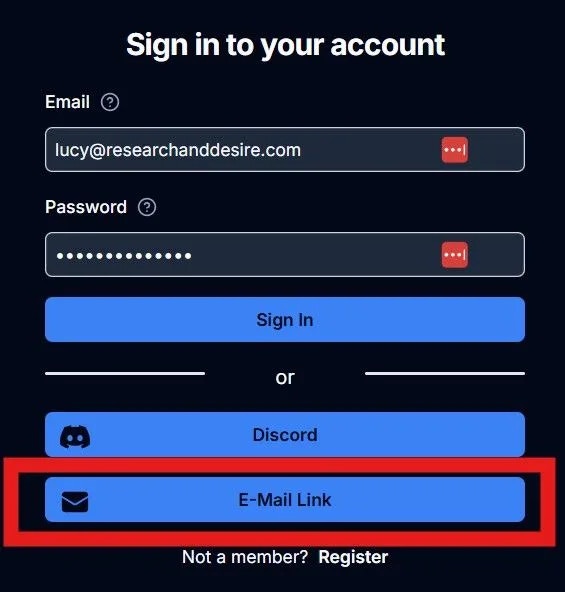 You'll receive an email with a secure link. Click the link to log in without entering your password.
Magic links expire after a short time. If yours has expired, request a new one
from the login page.
## Reset your password
If you prefer to set a new password, you can do so from your profile settings.
Go to **Settings > My Profile** in your dashboard.
You'll receive an email with a secure link. Click the link to log in without entering your password.
Magic links expire after a short time. If yours has expired, request a new one
from the login page.
## Reset your password
If you prefer to set a new password, you can do so from your profile settings.
Go to **Settings > My Profile** in your dashboard.
 Scroll to the bottom of the page and click **Change Password**.
Enter your new password, then click **Reset Password** to save your changes.
Your password has been updated. Use your new password the next time you log
in.
Scroll to the bottom of the page and click **Change Password**.
Enter your new password, then click **Reset Password** to save your changes.
Your password has been updated. Use your new password the next time you log
in.