

This page is a work in progress.TODO:
- 3030 Extrusion Stand Assembly
- Add “OSSM - Mod” multiple-component project template
- Determine if Hardware components should be “independent” (for now, designer’s preference—independent could allow a scripted hardware count)
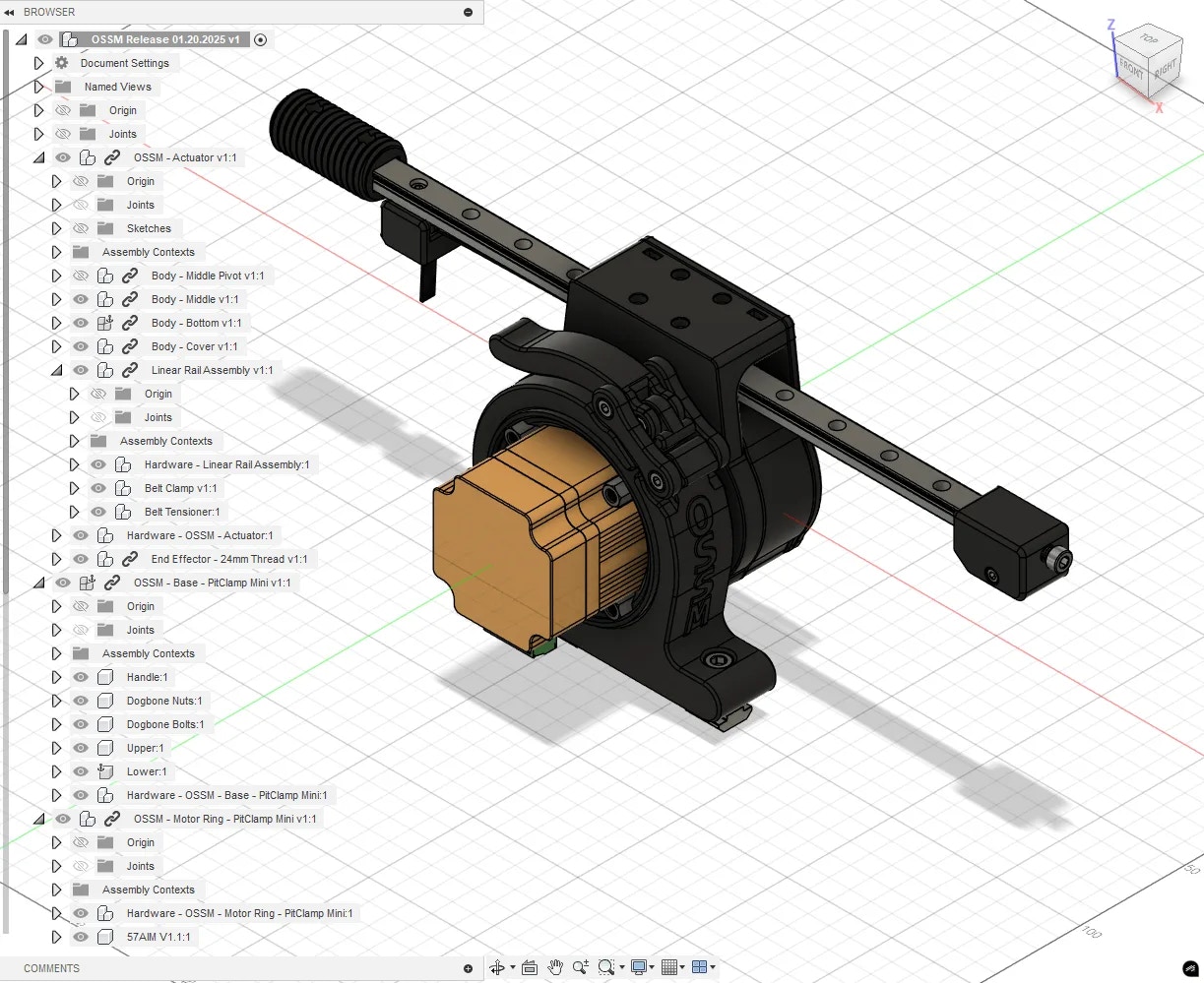
Overview of the OSSM standard printed parts structure
Project template
Use the contribution template located in the Templates directory (in the source repository) as your starting point. Replace “Project Name” in the Document and Component with your actual project name.Fusion file structure
Organize your Fusion 360 project following this hierarchy:Naming conventions
Reserved characters
| Character | Purpose | Usage rules |
|---|---|---|
. (dot) | Designates file extension | Allowed for versioning, e.g., V1.1 |
- (hyphen) | Designates parent-child Component relationship | Allowed in hardware names, e.g., M5 T-Nut |
_ (underscore) | Designates a Component | Disallowed |
[] (brackets) | Designates reuse of hardware | Special use only |
() (parentheses) | Designates special hardware instructions | Special use only |
Single component projects
If your project contains only one printable Component, name that Component identically to the ProjectName.Parent-child component relationships
To designate a part as a child of a Parent Component, use the Parent Component’s exact name followed by- and the Child Component name.
Only one Parent-child relationship is allowed per Document, and it must be on a single level. For more complex relationships, nest Documents as linked Components.
Version increments
When updating a part from its initial release, append V#.# (uppercase, case sensitive) to the Component Name, representing Major.Minor updates.
Example: Ring V1.1
Hardware requirements
If your part requires hardware, nest all hardware as Components within a single top-level Component namedHardware - ProjectName.
Example: Hardware - Body - Middle where Body - Middle is the ProjectName.
Reused hardware
When your part reuses hardware from a part it replaces, append [From:{Component}] to the Component name.
Example: M3 x 8 Cap Head Bolt [From:OSSM - Body - Middle]
Alternative hardware
When an alternative hardware option exists, append ({Specification} alternative) to the Component Name.
Example: M4x12 Cap Head Screw (M4 x 10 alternative)
Variant hardware
When hardware varies based on the user’s setup, use({Specification} for {variant},{Specification2} for {variant2}) in the Component Name.
Example: (M6 x 15 Cap Head Screw for 3030 Extrusion,M6 x 20 Cap Head Screw for 4040 Extrusion)
Running a release from Fusion
This section is for OSSM Project Leads only. The release process is a proof of concept that may evolve over time, but it relies on the above conventions being followed strictly.
Future work
- Convert
.stpto.stlat high-quality refinement and bundle intoOSSM-Hardware/ossm/Hardware/OSSM Printed Partsrelease - Generate hardware documentation from
Hardwarenamed component structures
Release steps
1
Update the Document name
Rename your Fusion Document to
OSSM Release $MM.DD.YYYY.2
Export the Document
Export your Fusion Document as
OSSM.f3z to overwrite the current file.3
Run ExportIt
Run the Add-In “ExportIt” using the settings shown below. This populates the
_export directory with f3d and step folders.4
Run the organization script
Run
OrganizeForRelease.ps1 in a PowerShell terminal from the directory containing the _export folder, next to OSSM.f3z.This creates a RELEASE folder with the date appended, organizing files in release configuration:.f3dfiles are grouped based on Fusion nested structure.stpfiles are grouped based on naming convention, with children grouped into parent directories- Future: Documentation framework generated referencing files in
Hardwaredirectories
5
Manual cleanup
Complete these final tasks:
- Move the previous release to the
_archivefolder - Check for loose files in
_exportand remove them
ExportIt settings
Configure ExportIt with these settings:Export tab
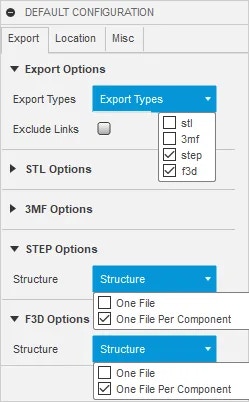
ExportIt Export tab configuration
Location tab
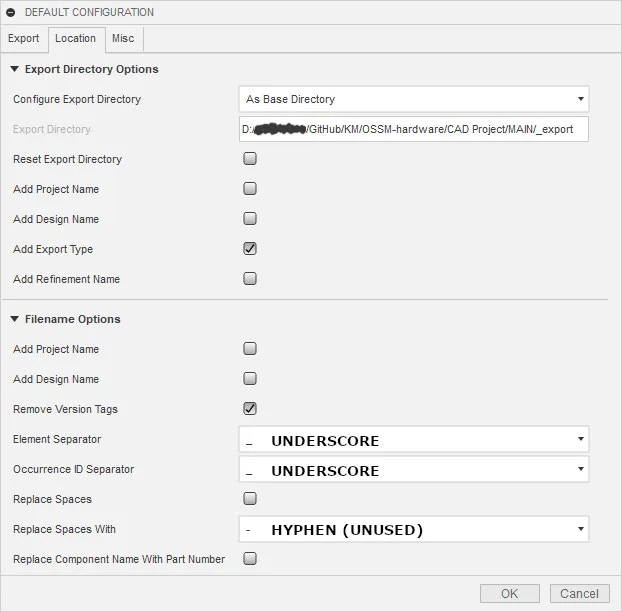
ExportIt Location tab configuration
Misc tab
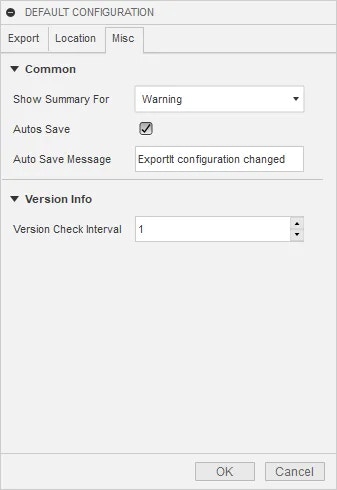
ExportIt Misc tab configuration