> ## Documentation Index
> Fetch the complete documentation index at: https://docs.researchanddesire.com/llms.txt
> Use this file to discover all available pages before exploring further.
# Wi‑Fi troubleshooting
> Resolve Wi‑Fi connection issues for your Chastity Lockbox or Deepthroat Trainer
If your Chastity Lockbox or Deepthroat Trainer isn't connecting to Wi‑Fi, use this guide to diagnose and fix the problem quickly.
R+D devices require a 2.4 GHz Wi‑Fi network. They are not compatible with 5 GHz–only networks.
Place the device next to your router while troubleshooting. This rules out weak signal strength and interference.
* Make sure your router provides internet access (not just local LAN access).
* Guest or captive‑portal networks (those that open a web page to sign in) are not supported for device connectivity.
## How the Lockbox shows Wi‑Fi status
The Chastity Lockbox uses a Wi‑Fi icon and a colored status circle on the display.
### Wi‑Fi icon
* Wi‑Fi icon off: The device is not connected to Wi‑Fi.
* Wi‑Fi icon on (no slash): The device may be connected — check the colored circle for details.
### Status circle colors
 The device has no Wi‑Fi connection. Proceed to the troubleshooting steps below.
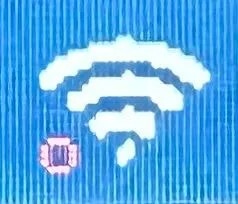 The device is connected to your Wi‑Fi network but cannot reach the internet. Your router may be offline, or the network may be blocking the device.
 The device is online but hasn't logged into the dashboard yet. If yellow persists, continue with the troubleshooting steps.
 The device is fully connected and logged into the dashboard. No action needed.
## Troubleshooting steps
Work through these steps in order. After each step, check your device's status circle.
* Ensure you have a 2.4 GHz Wi‑Fi network available (many routers broadcast both 2.4 GHz and 5 GHz; connect to the 2.4 GHz SSID).
* If your router combines 2.4/5 GHz under one name (band steering), temporarily split them into separate SSIDs and connect to the 2.4 GHz SSID.
* Use WPA2‑PSK (AES) security or WPA2/WPA3 mixed mode. Avoid WPA3‑only, WEP, or WPA‑TKIP.
* Disable guest/captive‑portal sign‑in for the device's network.
You should see the Wi‑Fi icon turn on. If a green circle does not appear yet, continue to the next step.
1. On the Lockbox, go to Settings → Wi‑Fi Settings.
2. Scan the QR code shown on the Lockbox display with your phone.
3. On your phone, select your 2.4 GHz network and enter the Wi‑Fi password.
A green dot appears to the left of the Lockbox Wi‑Fi symbol when connected. If you don't see the green dot, double‑check the password and try again.
See Quick Start for setup basics: Lockbox Quick Start. FAQs also cover Wi‑Fi behavior and indicators: Lockbox FAQs.
1. Power on the Trainer. When prompted, hold the button to open the Settings page.
2. The Trainer starts a temporary Wi‑Fi network named "Trainer Setup."
3. On your phone, join the "Trainer Setup" network. A setup page opens.
4. Tap Configure Wi‑Fi, choose your 2.4 GHz network, and enter the password, then Save.
5. The Trainer will restart and connect.
After restart, the Trainer connects and downloads settings automatically. If it doesn't connect, repeat the steps and confirm you selected a 2.4 GHz SSID.
Detailed walkthrough: Connect Trainer to Wi‑Fi
Unplug your modem and router for 30 seconds, then plug them back in. Wait until Wi‑Fi is fully restored before retrying the connection.
Use your phone or laptop to join the same 2.4 GHz SSID and confirm the password is correct.
Make sure other devices on the network can browse the internet. If they cannot, fix your internet service first.
Test with a mobile hotspot from your phone. If your device connects to the hotspot but not your home router, the router's settings likely need adjustment.
R+D devices require 2.4 GHz. Many modern phones default to 5 GHz for hotspots. Follow the steps below to enable 2.4 GHz on your phone.
iPhones (12 and later) default to 5 GHz for Personal Hotspot, which R+D devices cannot use. To enable 2.4 GHz:
1. Open **Settings** → **Personal Hotspot**
2. Enable **Maximize Compatibility**
3. Turn on the hotspot
Without "Maximize Compatibility" enabled, your iPhone hotspot broadcasts at 5 GHz and R+D devices will not see it or connect.
Most Android phones default to 2.4 GHz, but some newer models may use 5 GHz. To check or change:
1. Open **Settings** → **Connections** (or **Network**) → **Mobile Hotspot**
2. Tap **Configure** or the settings icon
3. Look for **Band** or **AP Band** and select **2.4 GHz**
Menu names vary by manufacturer. Samsung uses "Mobile Hotspot," Google Pixel uses "Hotspot & tethering."
* Ensure the Lockbox is not in Deep Sleep (Deep Sleep turns off Wi‑Fi). Learn more: Sleep Modes.
* Restart the device and try again. Instructions: Restarting Device.
## If you still can't connect
Use these advanced checks to resolve stubborn issues.
* Split 2.4 GHz and 5 GHz into separate SSIDs; disable band steering while testing.
* Security: use WPA2‑PSK (AES) or WPA2/WPA3 mixed. Avoid WPA3‑only, WEP, or WPA‑TKIP.
* Channel width: set 2.4 GHz to 20 MHz; use channels 1, 6, or 11 to reduce interference.
* Make sure DHCP is enabled and your network does not require static IP configuration for clients.
* Disable AP/client isolation and MAC address filtering for the device's SSID (or add the device to the allowlist).
* Ensure your firewall or parental‑control filters allow outbound HTTPS traffic to R+D services.
Your Wi‑Fi is connected but the internet is unreachable. Power‑cycle your modem/router, verify your ISP connection, and confirm that your network does not require web‑page sign‑in (captive portal) for access.
Wait up to a minute after joining Wi‑Fi. If yellow persists, restart the device and the router, then reconnect on the 2.4 GHz SSID. If it still persists, try an alternate network (mobile hotspot) to rule out router configuration issues.
## Related guides
Step‑by‑step setup for your Chastity Lockbox, including Wi‑Fi and pairing.
Walkthrough for putting your Trainer online via the setup portal.
## Need help?
If the problem persists after completing all steps, contact our support team with details about your router model, SSID name (not the password), security mode, and what you've tried so far.
[support@researchanddesire.com](mailto:support@researchanddesire.com)
Submit a support request online
The device is fully connected and logged into the dashboard. No action needed.
## Troubleshooting steps
Work through these steps in order. After each step, check your device's status circle.
* Ensure you have a 2.4 GHz Wi‑Fi network available (many routers broadcast both 2.4 GHz and 5 GHz; connect to the 2.4 GHz SSID).
* If your router combines 2.4/5 GHz under one name (band steering), temporarily split them into separate SSIDs and connect to the 2.4 GHz SSID.
* Use WPA2‑PSK (AES) security or WPA2/WPA3 mixed mode. Avoid WPA3‑only, WEP, or WPA‑TKIP.
* Disable guest/captive‑portal sign‑in for the device's network.
You should see the Wi‑Fi icon turn on. If a green circle does not appear yet, continue to the next step.
1. On the Lockbox, go to Settings → Wi‑Fi Settings.
2. Scan the QR code shown on the Lockbox display with your phone.
3. On your phone, select your 2.4 GHz network and enter the Wi‑Fi password.
A green dot appears to the left of the Lockbox Wi‑Fi symbol when connected. If you don't see the green dot, double‑check the password and try again.
See Quick Start for setup basics: Lockbox Quick Start. FAQs also cover Wi‑Fi behavior and indicators: Lockbox FAQs.
1. Power on the Trainer. When prompted, hold the button to open the Settings page.
2. The Trainer starts a temporary Wi‑Fi network named "Trainer Setup."
3. On your phone, join the "Trainer Setup" network. A setup page opens.
4. Tap Configure Wi‑Fi, choose your 2.4 GHz network, and enter the password, then Save.
5. The Trainer will restart and connect.
After restart, the Trainer connects and downloads settings automatically. If it doesn't connect, repeat the steps and confirm you selected a 2.4 GHz SSID.
Detailed walkthrough: Connect Trainer to Wi‑Fi
Unplug your modem and router for 30 seconds, then plug them back in. Wait until Wi‑Fi is fully restored before retrying the connection.
Use your phone or laptop to join the same 2.4 GHz SSID and confirm the password is correct.
Make sure other devices on the network can browse the internet. If they cannot, fix your internet service first.
Test with a mobile hotspot from your phone. If your device connects to the hotspot but not your home router, the router's settings likely need adjustment.
R+D devices require 2.4 GHz. Many modern phones default to 5 GHz for hotspots. Follow the steps below to enable 2.4 GHz on your phone.
iPhones (12 and later) default to 5 GHz for Personal Hotspot, which R+D devices cannot use. To enable 2.4 GHz:
1. Open **Settings** → **Personal Hotspot**
2. Enable **Maximize Compatibility**
3. Turn on the hotspot
Without "Maximize Compatibility" enabled, your iPhone hotspot broadcasts at 5 GHz and R+D devices will not see it or connect.
Most Android phones default to 2.4 GHz, but some newer models may use 5 GHz. To check or change:
1. Open **Settings** → **Connections** (or **Network**) → **Mobile Hotspot**
2. Tap **Configure** or the settings icon
3. Look for **Band** or **AP Band** and select **2.4 GHz**
Menu names vary by manufacturer. Samsung uses "Mobile Hotspot," Google Pixel uses "Hotspot & tethering."
* Ensure the Lockbox is not in Deep Sleep (Deep Sleep turns off Wi‑Fi). Learn more: Sleep Modes.
* Restart the device and try again. Instructions: Restarting Device.
## If you still can't connect
Use these advanced checks to resolve stubborn issues.
* Split 2.4 GHz and 5 GHz into separate SSIDs; disable band steering while testing.
* Security: use WPA2‑PSK (AES) or WPA2/WPA3 mixed. Avoid WPA3‑only, WEP, or WPA‑TKIP.
* Channel width: set 2.4 GHz to 20 MHz; use channels 1, 6, or 11 to reduce interference.
* Make sure DHCP is enabled and your network does not require static IP configuration for clients.
* Disable AP/client isolation and MAC address filtering for the device's SSID (or add the device to the allowlist).
* Ensure your firewall or parental‑control filters allow outbound HTTPS traffic to R+D services.
Your Wi‑Fi is connected but the internet is unreachable. Power‑cycle your modem/router, verify your ISP connection, and confirm that your network does not require web‑page sign‑in (captive portal) for access.
Wait up to a minute after joining Wi‑Fi. If yellow persists, restart the device and the router, then reconnect on the 2.4 GHz SSID. If it still persists, try an alternate network (mobile hotspot) to rule out router configuration issues.
## Related guides
Step‑by‑step setup for your Chastity Lockbox, including Wi‑Fi and pairing.
Walkthrough for putting your Trainer online via the setup portal.
## Need help?
If the problem persists after completing all steps, contact our support team with details about your router model, SSID name (not the password), security mode, and what you've tried so far.
[support@researchanddesire.com](mailto:support@researchanddesire.com)
Submit a support request online