

Contributing to Documentation

The OSSM documentation is built with Mintlify, a modern documentation platform that makes it easy to create beautiful, interactive docs.
All changes to the Documentation/ossm directory are automatically deployed to https://www.researchanddesire.com/ossm after merging to the main branch.

Documentation Platform

This documentation uses Mintlify for rendering and deployment. For detailed information about available components, formatting options, and best practices, visit the official Mintlify documentation:

Mintlify Documentation

Complete guide to Mintlify features, components, and configuration

Local Development Setup

To preview documentation changes locally before submitting a pull request:
1

Navigate to the Documentation directory

cd Documentation
2

Install dependencies

pnpm i
3

Start the local preview server

pnpm mint
This starts a local development server with hot-reload enabled.
4

View the preview

Open your browser and navigate to:
http://localhost:3333
The preview updates automatically as you edit MDX files.
The Mintlify web editor is not available for this project. All editing must be done locally using your preferred text editor.

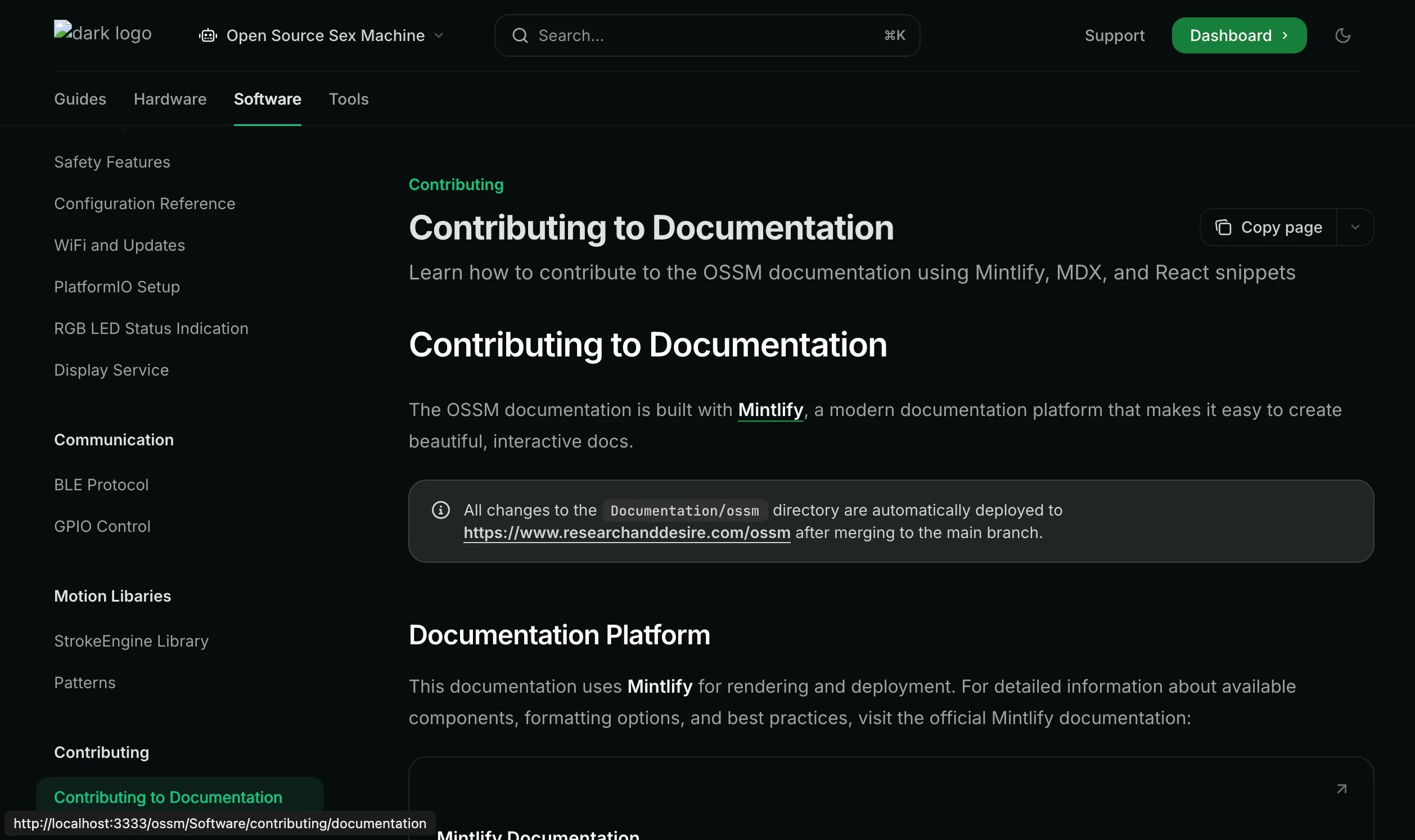
Local Preview

Once you have the local server running, you’ll see the full documentation site with navigation, search, and all Mintlify features: Local documentation preview The preview includes the complete navigation sidebar, showing all sections including the new “Contributing” section under the Software tab.
Writing Documentation

MDX Format

All documentation pages use MDX (Markdown + JSX), which allows you to combine standard Markdown with React components for rich, interactive content. Example MDX structure:
---
title: "Page Title"
description: "Brief description for SEO and previews"
---

# Main Heading

Regular Markdown content works here.

<Info>
You can use Mintlify components like this.
</Info>

## Another Section

More content here...

Image Guidelines

Images should be co-located with the documentation that uses them:
ossm/Software/communication/
├── ble.mdx
├── gpio.mdx
└── _images/
    ├── ble-diagram.png
    └── gpio-pinout.jpg
Don’t worry about image optimization—images are automatically optimized during the deployment process.

React Snippets

For interactive examples and demonstrations, you can embed React components using the snippet system.

Snippet Location

All React snippets are stored in:
Documentation/snippets/ossm/

Snippet Requirements

Snippets must use pure React with no external frameworks or build tools. The React version is provided by the Mintlify runtime.
// ✅ Good - Pure React
import { useState } from 'react';

export const Counter = () => {
  const [count, setCount] = useState(0);
  return <button onClick={() => setCount(count + 1)}>Count: {count}</button>;
};
// ❌ Bad - External dependencies
import { useQuery } from 'react-query';
import axios from 'axios';
TailwindCSS is included and ready to use for styling. No additional CSS imports needed.
export const StyledComponent = () => {
  return (
    <div className="p-4 bg-gray-100 rounded-lg shadow-md">
      <h2 className="text-xl font-bold text-gray-800">Hello</h2>
      <p className="mt-2 text-gray-600">Styled with Tailwind</p>
    </div>
  );
};
Each snippet file must have exactly one export or declared function. Multiple exports are not supported.
// ✅ Good - Single export
export const MyComponent = () => {
  return <div>Content</div>;
};
// ❌ Bad - Multiple exports
export const ComponentA = () => <div>A</div>;
export const ComponentB = () => <div>B</div>;

Example Snippet

Here’s a complete example showing the proper structure:
import { useState } from 'react';

export const ExampleSnippet = () => {
  const [isActive, setIsActive] = useState(false);

  return (
    <div className="p-6 bg-gradient-to-r from-blue-50 to-purple-50 rounded-xl">
      <h3 className="text-2xl font-bold text-gray-800 mb-4">
        Interactive Example
      </h3>
      <button
        onClick={() => setIsActive(!isActive)}
        className={`px-4 py-2 rounded-lg font-medium transition-colors ${
          isActive
            ? 'bg-green-500 text-white'
            : 'bg-gray-200 text-gray-700'
        }`}
      >
        {isActive ? 'Active' : 'Inactive'}
      </button>
      {isActive && (
        <p className="mt-4 text-gray-600">
          The component is now active!
        </p>
      )}
    </div>
  );
};

Development Tools

Cursor Rules Included

This project includes Cursor AI rules to help you follow documentation best practices automatically while editing.

Next Steps