Connect your Deepthroat Trainer to your dashboard account in minutes.
Before you start, make sure your trainer is charged and that you can sign in to your dashboard account. For live syncing and remote features, connect your trainer to Wi‑Fi after pairing. See Connect your trainer to Wi‑Fi.
Watch AJ demonstrate the complete pairing process step-by-step.
Video transcript
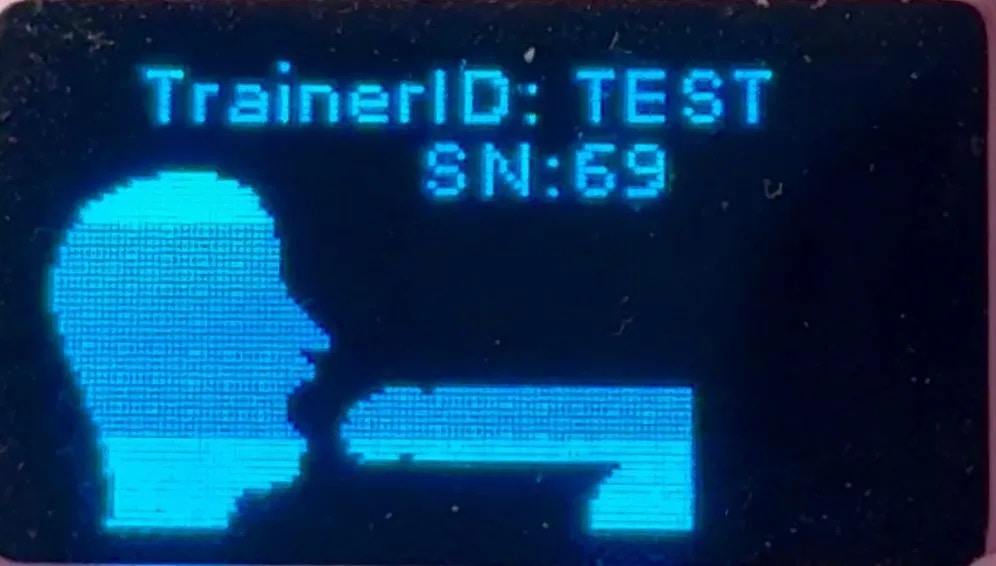
0:00 Hi there! Today I’ll show you how to find your Trainer ID so you can pair your Deepthroat Trainer to the dashboard.0:08 I have a fully charged Deepthroat Trainer here. I’m going to turn it on—during boot you’ll see “Trainer ID: TEST” at the top center.0:18 “TEST” is the Trainer ID for my demo device. Your device will show a random 5–6 character alphanumeric code—write it down for later.0:32 If you forget it, just power the device off and back on. The Trainer ID appears again during startup.0:38 I’ll take that code into the dashboard and enter it under Settings → Devices.0:51 You can do this on mobile or desktop. I’ll enter my demo code in the “Deepthroat Trainer ID” field.0:59 You’ll have your own randomized code. I’ll click “Pair Device.” Perfect—my device is paired.
Transferring a previously paired device? The current owner must unpair it from their account before you can pair it. For how ownership is determined and transfers are handled, see Device ownership policy.
Turn the device off, then back on—the Trainer ID displays again during startup.
Entered the wrong code?
Make sure you’re entering the exact Trainer ID from the boot screen. It’s 5–6 characters, case‑sensitive, with no spaces. Don’t use your Wi‑Fi SSID or password here.
Device already paired to another account?
Ask the current owner to unpair it from their account. If you can’t reach them, review the ownership policy and contact support for assistance.
Still need help?
Contact support via the dashboard or our website. Include your Trainer ID and a screenshot of any error message to speed up resolution.