

- Make sure your router provides internet access (not just local LAN access).
- Guest or captive‑portal networks (those that open a web page to sign in) are not supported for device connectivity.
How the Lockbox shows Wi‑Fi status
The Chastity Lockbox uses a Wi‑Fi icon and a colored status circle on the display.Wi‑Fi icon
- Wi‑Fi icon off: The device is not connected to Wi‑Fi.
- Wi‑Fi icon on (no slash): The device may be connected — check the colored circle for details.
Status circle colors
No circle or icon off — Not connected
No circle or icon off — Not connected
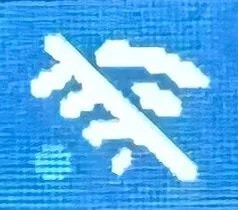
Red circle — No internet access
Red circle — No internet access
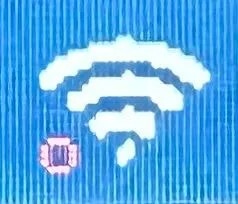
Yellow circle — Connecting to dashboard
Yellow circle — Connecting to dashboard
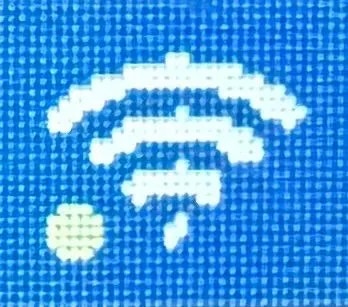
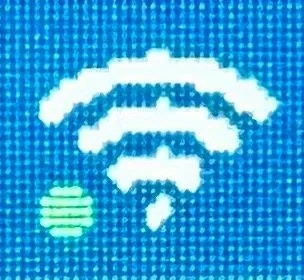
Green circle — Fully connected
Green circle — Fully connected
Troubleshooting steps
Work through these steps in order. After each step, check your device’s status circle.1
Confirm network requirements
- Ensure you have a 2.4 GHz Wi‑Fi network available (many routers broadcast both 2.4 GHz and 5 GHz; connect to the 2.4 GHz SSID).
- If your router combines 2.4/5 GHz under one name (band steering), temporarily split them into separate SSIDs and connect to the 2.4 GHz SSID.
- Use WPA2‑PSK (AES) security or WPA2/WPA3 mixed mode. Avoid WPA3‑only, WEP, or WPA‑TKIP.
- Disable guest/captive‑portal sign‑in for the device’s network.
You should see the Wi‑Fi icon turn on. If a green circle does not appear yet, continue to the next step.
2
Connect your device to Wi‑Fi
- Chastity Lockbox
- Deepthroat Trainer
- On the Lockbox, go to Settings → Wi‑Fi Settings.
- Scan the QR code shown on the Lockbox display with your phone.
- On your phone, select your 2.4 GHz network and enter the Wi‑Fi password.
A green dot appears to the left of the Lockbox Wi‑Fi symbol when connected. If you don’t see the green dot, double‑check the password and try again.
See Quick Start for setup basics: Lockbox Quick Start. FAQs also cover Wi‑Fi behavior and indicators: Lockbox FAQs.
3
Restart your network equipment
Unplug your modem and router for 30 seconds, then plug them back in. Wait until Wi‑Fi is fully restored before retrying the connection.
4
Verify your Wi‑Fi password
Use your phone or laptop to join the same 2.4 GHz SSID and confirm the password is correct.
5
Test your internet connection
Make sure other devices on the network can browse the internet. If they cannot, fix your internet service first.
6
Try an alternative network (mobile hotspot)
Test with a mobile hotspot from your phone. If your device connects to the hotspot but not your home router, the router’s settings likely need adjustment.
- iPhone
- Android
iPhones (12 and later) default to 5 GHz for Personal Hotspot, which R+D devices cannot use. To enable 2.4 GHz:
- Open Settings → Personal Hotspot
- Enable Maximize Compatibility
- Turn on the hotspot
7
Rule out device state issues
- Ensure the Lockbox is not in Deep Sleep (Deep Sleep turns off Wi‑Fi). Learn more: Sleep Modes.
- Restart the device and try again. Instructions: Restarting Device.
If you still can’t connect
Use these advanced checks to resolve stubborn issues.Router and access point settings
Router and access point settings
- Split 2.4 GHz and 5 GHz into separate SSIDs; disable band steering while testing.
- Security: use WPA2‑PSK (AES) or WPA2/WPA3 mixed. Avoid WPA3‑only, WEP, or WPA‑TKIP.
- Channel width: set 2.4 GHz to 20 MHz; use channels 1, 6, or 11 to reduce interference.
- Make sure DHCP is enabled and your network does not require static IP configuration for clients.
- Disable AP/client isolation and MAC address filtering for the device’s SSID (or add the device to the allowlist).
- Ensure your firewall or parental‑control filters allow outbound HTTPS traffic to R+D services.
Lockbox shows a red circle
Lockbox shows a red circle
Your Wi‑Fi is connected but the internet is unreachable. Power‑cycle your modem/router, verify your ISP connection, and confirm that your network does not require web‑page sign‑in (captive portal) for access.
Lockbox shows a persistent yellow circle
Lockbox shows a persistent yellow circle
Wait up to a minute after joining Wi‑Fi. If yellow persists, restart the device and the router, then reconnect on the 2.4 GHz SSID. If it still persists, try an alternate network (mobile hotspot) to rule out router configuration issues.
Related guides
Lockbox Quick Start
Step‑by‑step setup for your Chastity Lockbox, including Wi‑Fi and pairing.
Trainer: Connect to Wi‑Fi
Walkthrough for putting your Trainer online via the setup portal.
Need help?
If the problem persists after completing all steps, contact our support team with details about your router model, SSID name (not the password), security mode, and what you’ve tried so far.Email support
Contact form
Submit a support request online