
1
Lock icon
Indicates whether your device is currently locked. The status indicator shows whether the backplate is properly positioned. See Lock icon for details.
2
Wi-Fi icon
Shows whether your device is connected to a Wi-Fi network. The status indicator reveals whether you’re also connected to the dashboard and ready to play. See Wi-Fi icon for details.
3
Battery icon
Displays the current battery level and charging status. This icon has no status indicator. See Battery icon for details.
Lock icon
The lock icon shows the current status of your device’s sensors. This icon reflects the physical state of the lock mechanism—not your active play session.Locked

Unlocked

Backplate on


Backplate off
.webp?fit=max&auto=format&n=LuUTnWrXlgIS5YfY&q=85&s=28ff826393ce375319e141b69598902e)

Wi-Fi icon
Wi-Fi not connected
.webp?fit=max&auto=format&n=LuUTnWrXlgIS5YfY&q=85&s=c8c6f21356c23d0d9d59e015b84bc80b)
- Your lockbox is brand new and has never been configured for Wi-Fi
- Your lockbox was previously connected but is now out of range of the saved network
Wi-Fi connected
.webp?fit=max&auto=format&n=LuUTnWrXlgIS5YfY&q=85&s=cebdd494bb2c040b2667d2a3482066a5)
Wi-Fi connectivity alone doesn’t mean your device can receive commands. You also need to pair your device and connect it to the dashboard. Follow the pairing guide for instructions.
Status indicator: flashing yellow

The indicator checks two things: Wi-Fi connectivity AND server connection. Both must be working for the green indicator.
- Your device hasn’t been paired — Follow the pairing guide to complete setup.
- Your device just powered on — Server connection typically takes 15–30 seconds, but can take up to 2 minutes depending on your location and network conditions.
- Server connectivity issue — Temporary server maintenance or network routing issues.
Status indicator: solid red
A solid red indicator means your device is connected to the Wi-Fi network but cannot reach the internet. Your device cannot receive keyholder commands in this state. This typically indicates a network configuration issue rather than a device problem. Common causes include:- Router has no internet connection — Check that other devices on the same network can access the internet.
- Network firewall or filtering — Some networks (corporate, hotel, or public Wi-Fi) block certain connections. Try a different network.
- Captive portal not completed — Some networks require you to accept terms or log in through a browser before granting internet access.
- DNS or routing issues — Your router may be misconfigured. Try restarting your router.
Status indicator: solid green
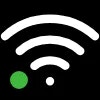
- Your device is connected to Wi-Fi
- Your device is connected to the dashboard server
- Your device is ready to receive keyholder commands instantly
Battery icon